Multi-cursor editing
Adding cursors ⋅ Selecting matches ⋅ Cursor commands ⋅ Editing with multiple cursors ⋅ Why?
Edit multiple locations at once using additional cursors and selections.
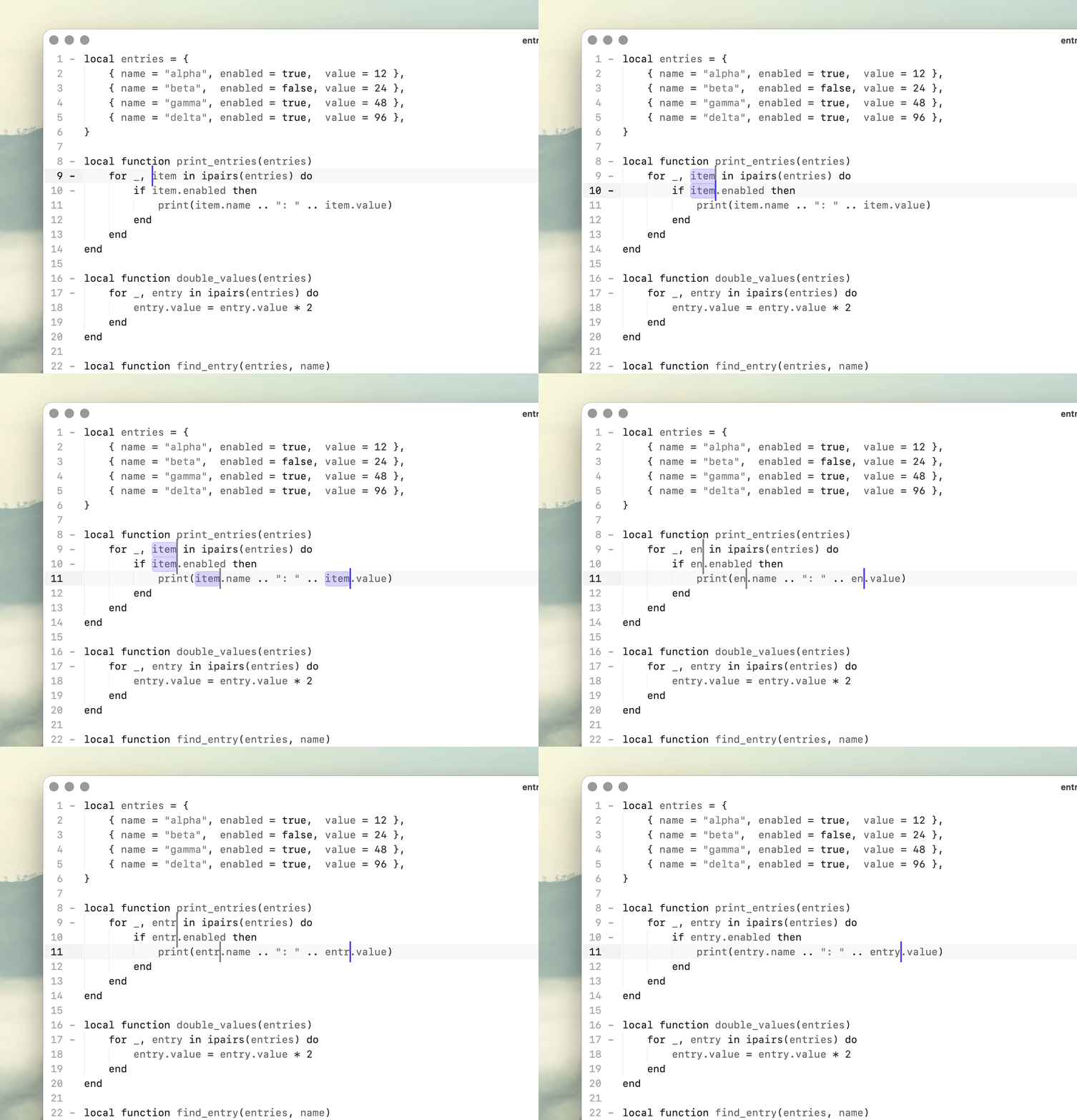
Add cursors manually, select matching text, or turn search results into cursors. Typing and editor commands then apply across all active locations.
Adding cursors
Add a cursor with the mouse
| Action | Result |
|---|---|
| ⌘ Command + Click | Add a cursor or selection at another location. |
| ⌘ Command + Double Click | Add the clicked word as another selection. |
| ⌥ Option + Drag | Add cursors vertically across multiple lines. |
When adding cursors vertically, lines without a valid position are skipped.
Add cursors with the keyboard
| Action | Result |
|---|---|
| ⌃ Control + ⇧ Shift + ↑ | Add a cursor on the line above at the same position. |
| ⌃ Control + ⇧ Shift + ↓ | Add a cursor on the line below at the same position. |
This makes it easy to build a vertical set of cursors without using the mouse.
Selecting matches
Multi-cursor selections can also be built from matching text.
Select next match
| Action | Result |
|---|---|
| ⌘ Command + E | Add the next matching occurrence as another selection. |
Select some text, then run Select next match to add the next occurrence. Run it repeatedly to build the set of matches you want to edit.
Unselect next match
| Action | Result |
|---|---|
| ⌘ Command + ⇧ Shift + E | Remove the most recently added matching selection. |
Use Unselect next natch to remove the most recently added match without discarding the rest of the selection.
Add cursors to all matches
| Action | Result |
|---|---|
| ⌘ Command + ⌥ Option + F | Add a cursor to every current Find in File match. |
Search with Find in File, then run Add cursor to all matches to turn every result in the document into an editable cursor. This is useful when you want replacement-like behavior while still editing the results directly.
Cursor commands
Add a cursor to each line
Select several lines, then run Add cursor to each line in selection.
Koi adds a cursor to every selected line. The lines do not need to have identical lengths or form a rectangular selection.
This works well for column-like edits, lists, prefixes, suffixes, and other repeated changes across lines.
Editing with multiple cursors
Once multiple cursors are active, normal editing commands apply to all of them. Type to insert at every cursor, delete across every selection, or use navigation and selection commands to move and extend them together.
Each cursor follows the same command independently, allowing a repeated edit to be built and adjusted using the same commands as a normal single-cursor edit.
Why?
Multi-cursor editing is useful when the same change needs to happen in several places, but a global find and replace would be too broad.
Build the selection interactively with clicks, matching words, search results, vertical cursors, or one cursor per line, then edit those locations together.
You decide exactly which occurrences participate in the edit.