Report a problem →

Your text editor
for code

A fast, minimal, local-first, scriptable code editor for macOS

Latest: v0.1.0-b210 · Apple Silicon · macOS 13.2+ · Releases · Changelog · Discord

timer.py
 1   
 2    > How does rumps work in python? Give a small example
 3   
 4    rumps (Ridiculously Uncomplicated Mac os x Python Statusbar) creates macOS menu bar apps.
 5   
 6    Here's a small example:
 7    
 8    import rumps
 9   
10    class MyApp(rumps.App):
11        def __init__(self):
12            super().__init__("MyApp", icon="icon.png")
13            self.menu = ["Preferences", "About", rumps.separator, "Quit"]
14   
15        @rumps.clicked("Preferences")
16        def prefs(self, _):
17            rumps.alert("Preferences clicked!")
18   
19        @rumps.clicked("About")
20        def about(self, _):
21            rumps.alert("This is my app!")
22   
23        @rumps.clicked("Quit")
24        def quit_app(self, _):
25            rumps.quit_application()
26    
27    if __name__ == "__main__":
28        MyApp().run()
29    
30    
 1    # tray timer using rumps
 2    import rumps
 3    import time
 4    from threading import Thread
 5    
 6  class FocusTimer(rumps.App):
 7      def __init__(self, duration: int = 1500): [10 lines folded]
18    
19        @rumps.clicked("Start")
20      def start(self, _):
21          if self.running:
22                return
23    
24            self.running: bool = True
25            Thread(target=self.tick, daemon=True).start()
26    
27        @rumps.clicked("Reset")
28      def reset(self, _): [3 lines folded]
32    
33      def tick(self):
34          while self.running and self.remaining > 0:
35                minutes: int = self.remaining // 60
36                seconds: int = self.remaining % 60
37                self.title: str = f"{minutes:02d}:{seconds:02d}"
38    
39                time.sleep(1)
40                self.remaining = 1
41    
42          if self.remaining == 0:
43                self.running = False
44                rumps.notification("Focus timer", "Done", "Time for a break.")
45    
46  if __name__ == "__main__":
47        FocusTimer().run()
48   
49    
Line 40, Column 13 qwen2.5-coder:1.5b, glm-5.3-flash:cloud ~/Desktop/focus-timer Python

Zero-latency typing

Koi is optimized to deliver measurable, low-latency typing performance, even as files grow.

Latency benchmarks →

Local-first

No accounts, no cloud, and no telemetry.

Connect local models through Ollama for code completion and inline chat.

Multi-monitor support

Open documents wherever you need them. Koi keeps changes synchronized across every open window.

Flexible workspaces

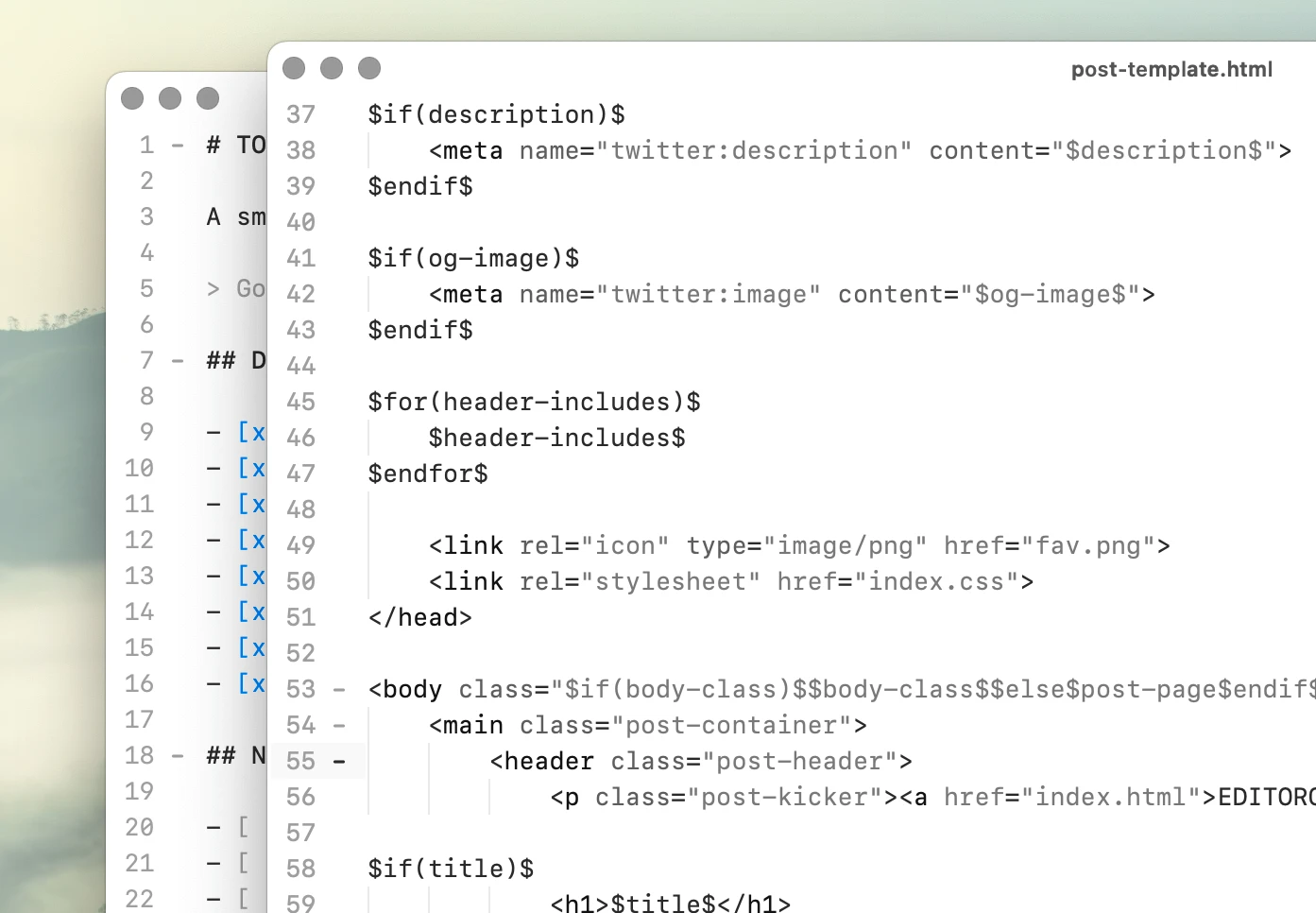
Open files side by side, split them into horizontal panes, or detach tabs into separate windows.

Every view stays in sync automatically, even when the same file is open across multiple windows.
Private AI completions

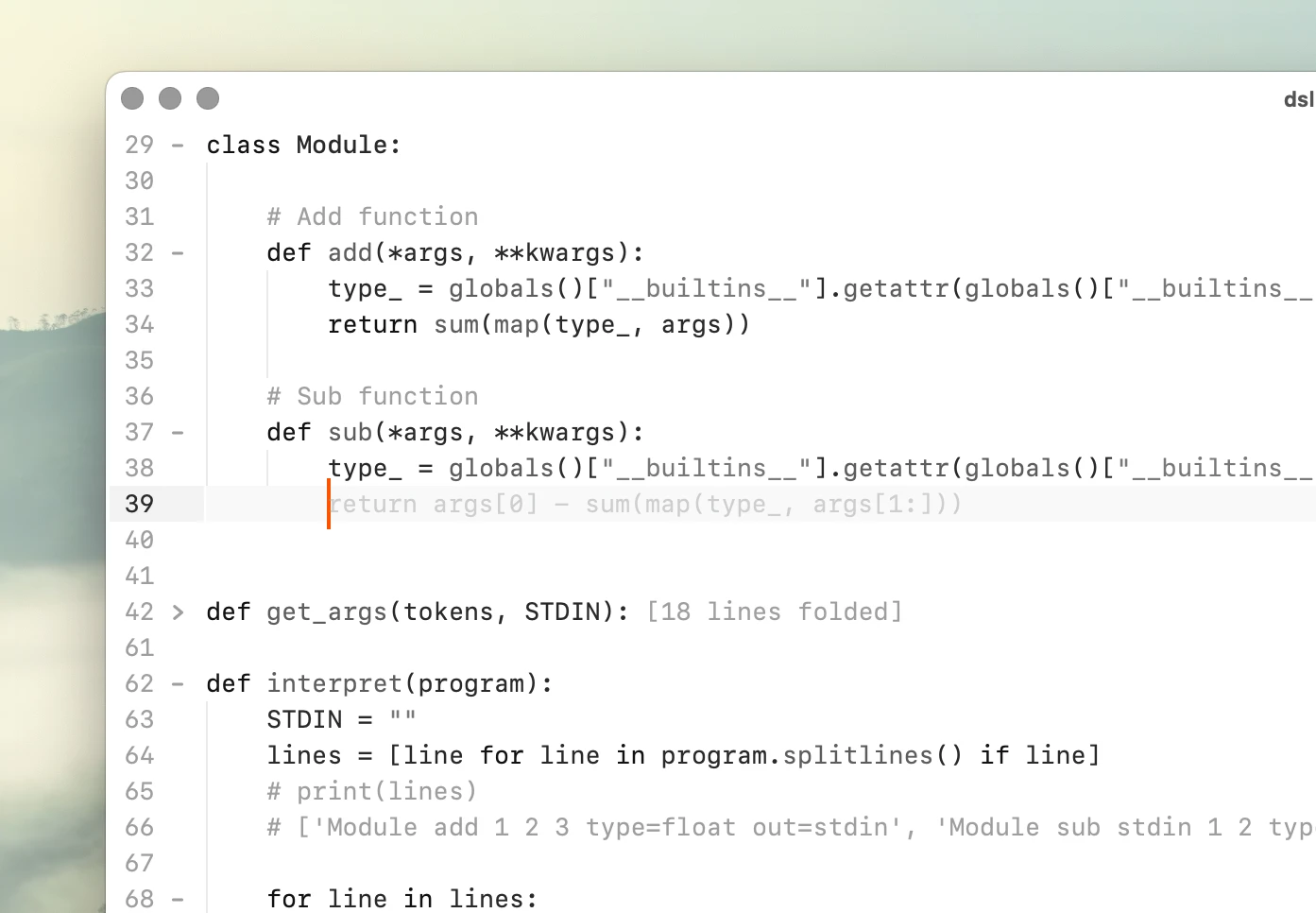
Run local models with Ollama, keep your code private, and choose the one that fits your machine and workflow.

AI-powered code suggestions are designed to stay fast, unobtrusive, and integrated into your editing workflow.
Inline shell and chat

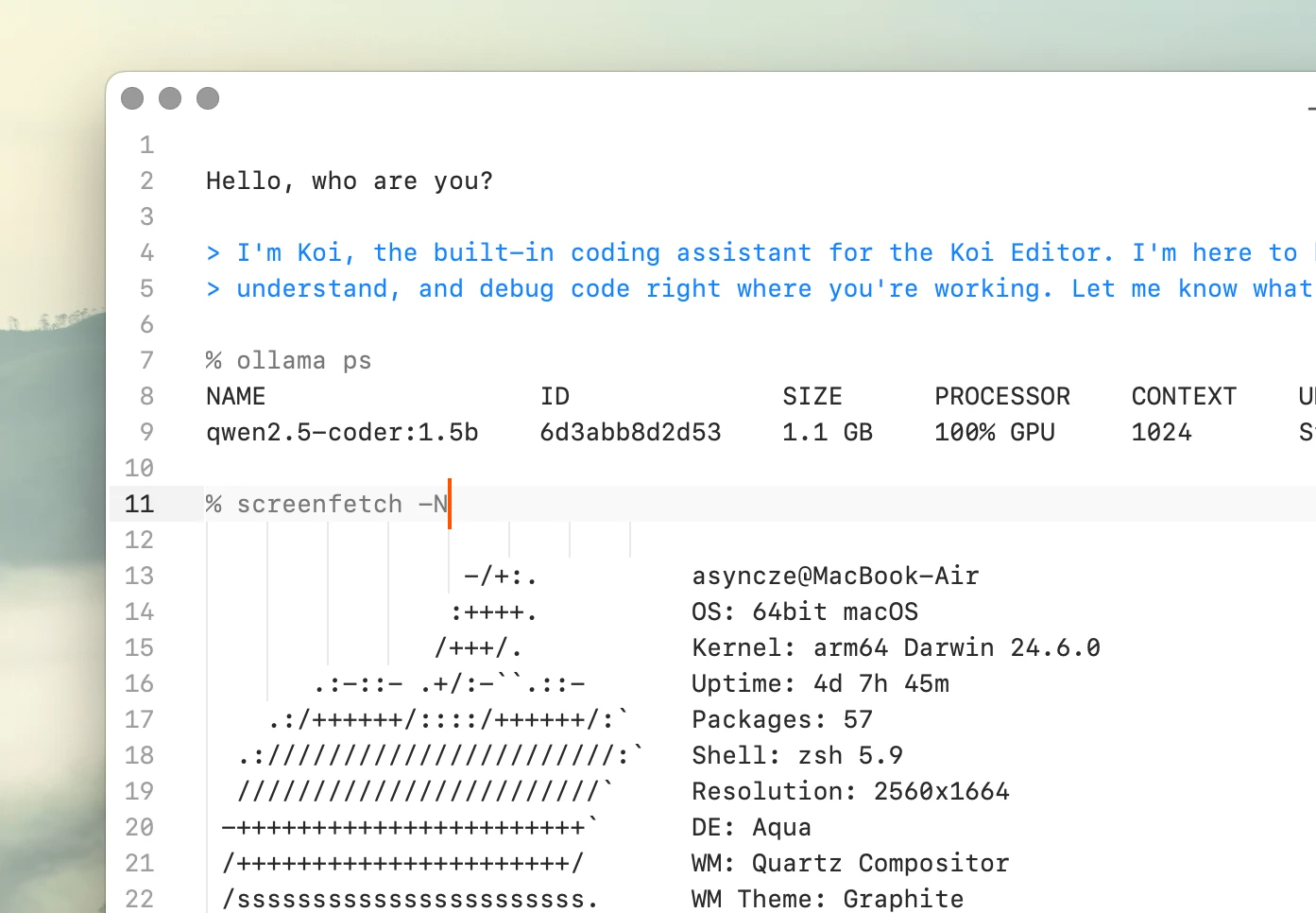
Run shell commands or chat with a local AI without leaving your editor. Send the current selection as a prompt and stream the response back into your document.
Custom editor commands

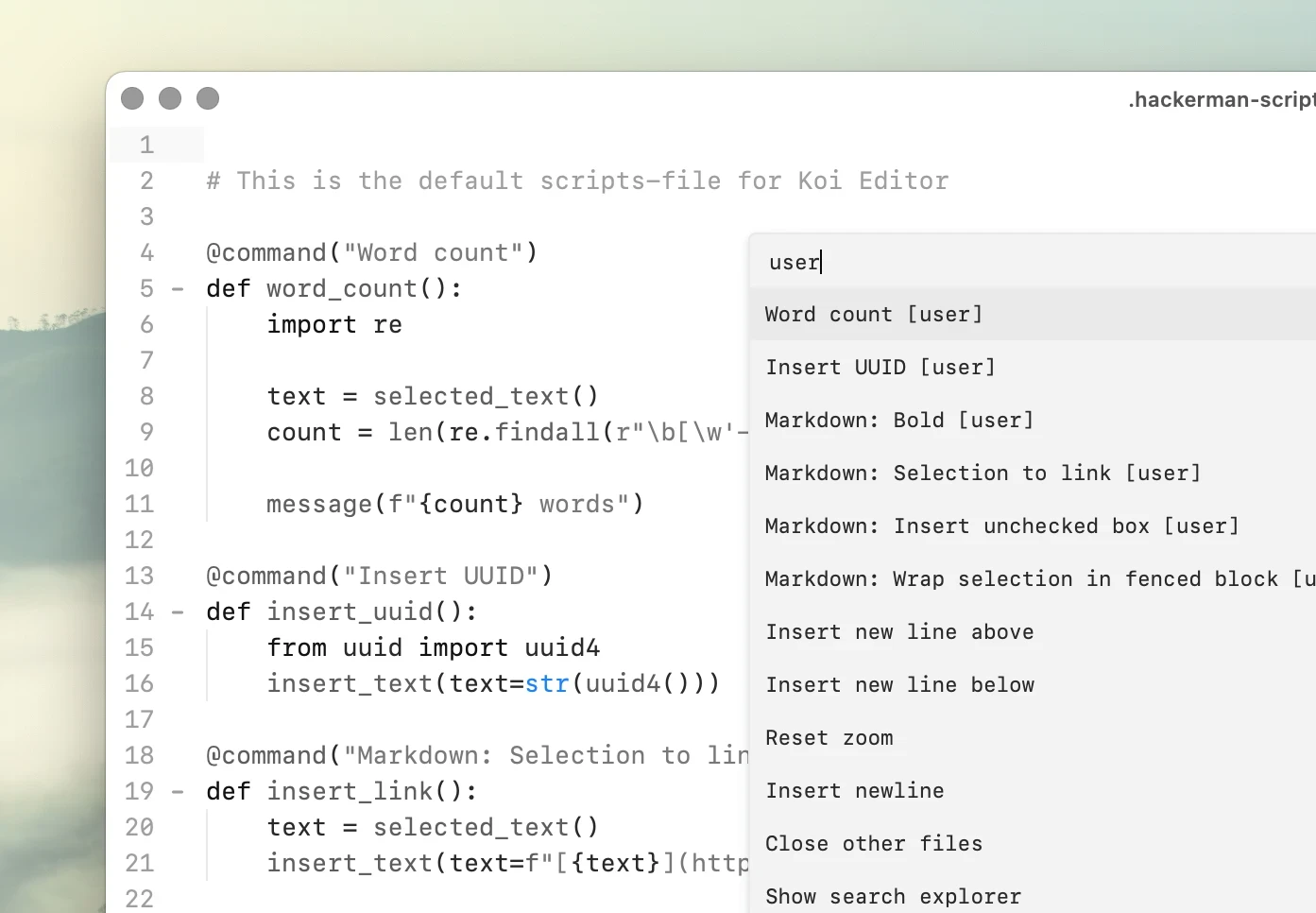
Extend Koi with plain Python instead of learning a plugin framework.

Write editor commands, bind them to shortcuts, and use them like built-in features.
Use cases

Zero-latency typing

Koi maintains a measured P95 typing latency of 17.86 ms while editing a 1 million-line Odin source file with syntax highlighting enabled.

Local AI, on your Mac

Koi works directly with local Ollama models, with no account, telemetry, or cloud intermediary. Use local code completion and inline AI while keeping your code and inference on your Mac.

Native macOS code editors

A look at code editors built specifically for macOS, from long-running editors like BBEdit and TextMate to newer alternatives like Nova, CodeEdit, and Koi.

Koi for note taking

Keep notes as ordinary Markdown, plain text, Org Mode, or other files. Open directly into your notes folder, search with ripgrep, and organize everything without a proprietary database.

Roadmap

What we're currently working on, and recently shipped.

Submit feature request →

Find in file optimizations

Tab multi-select

Multi-cursor editing

Multiple views, single document

Inline AI chat

Local code completion

Project-wide search

Context-aware auto-complete

Custom editor commands

Code scroller (minimap)

Emacs-like org mode for notes

In-code shell and Python eval

Hand-tuned native lexers for fast, precise syntax highlighting.

Asm

Bash

C

CSS

Clojure

C++

D

Diff

Elixir

Fortran

Gleam

Go

Haskell

HTML

Jai

Java

JavaScript

Julia

JSON

LaTeX

Lua

Makefile

Markdown

MATLAB

Mojo

Nim

OCaml

Odin

Org

Pascal

Perl

PHP

Python

R

Ruby

Rust

SQL

Swift

TOML

TypeScript

WAT

YAML

Zig

Pricing

Personal Pre-release

$195 $325

One-time payment

Single user

Unlimited machines

Commercial use

Buy once, own forever

Buy personal

Teams

$795 /year

For up to 10 users

Up to 10 users per license

Unlimited machines per user

Commercial use

One-year expiry

Buy for teams

Business

$19,995 /year

For larger organizations

Unlimited users

Unlimited machines per user

Commercial use

One-year expiry

Buy for business

Why should I buy a license?

Koi Editor is free for non-commercial use. If you use it for work, a commercial license is required. That is how development is funded.

What is non-commercial use?

Non-commercial use includes learning, personal projects, hobby use, and evaluation. If you use Koi Editor for paid work, company work, client work, or any other commercial activity, a commercial use license is required.

Which license is right for me?

The Personal license is for one individual user. Teams and Business licenses are for organizations and multi-user use.

Working alone and using it professionally: Personal

Buying for a small group: Teams

Covering a larger organization with one license: Business

Can I use my Personal license at work?

Yes. A Personal license can be used for commercial work if you are the only person using the software. For multi-user use, choose Teams or Business.

When should we choose Business instead of Teams?

Teams is designed for smaller groups and covers up to 10 users per license. If you need to cover more users, you can either increase the Teams license quantity at checkout or move to Business at renewal.

I lost my license file, where can I get a new one?

You can recover your license file on License recovery →, using your Session ID displayed to you after purchase.

We can also help you recover your license, send an email to koi@hackerman.ai and include any information relevant to your purchase, such as email, name, business name, approximate date and time.