Report a problem →

为代码而生的 文本编辑器

// 面向现代开发的传统文本编辑器。

Latest: v0.1.0-b210 · Apple Silicon · macOS 13.2+ · 发布记录 · 更新日志 · Discord

timer.py
 1   
 2    > How does rumps work in python? Give a small example
 3   
 4    rumps (Ridiculously Uncomplicated Mac os x Python Statusbar) creates macOS menu bar apps.
 5   
 6    Here's a small example:
 7    
 8    import rumps
 9   
10    class MyApp(rumps.App):
11        def __init__(self):
12            super().__init__("MyApp", icon="icon.png")
13            self.menu = ["Preferences", "About", rumps.separator, "Quit"]
14   
15        @rumps.clicked("Preferences")
16        def prefs(self, _):
17            rumps.alert("Preferences clicked!")
18   
19        @rumps.clicked("About")
20        def about(self, _):
21            rumps.alert("This is my app!")
22   
23        @rumps.clicked("Quit")
24        def quit_app(self, _):
25            rumps.quit_application()
26    
27    if __name__ == "__main__":
28        MyApp().run()
29    
30    
 1    # tray timer using rumps
 2    import rumps
 3    import time
 4    from threading import Thread
 5    
 6  class FocusTimer(rumps.App):
 7      def __init__(self, duration: int = 1500): [10 lines folded]
18    
19        @rumps.clicked("Start")
20      def start(self, _):
21          if self.running:
22                return
23    
24            self.running: bool = True
25            Thread(target=self.tick, daemon=True).start()
26    
27        @rumps.clicked("Reset")
28      def reset(self, _): [3 lines folded]
32    
33      def tick(self):
34          while self.running and self.remaining > 0:
35                minutes: int = self.remaining // 60
36                seconds: int = self.remaining % 60
37                self.title: str = f"{minutes:02d}:{seconds:02d}"
38    
39                time.sleep(1)
40                self.remaining = 1
41    
42          if self.remaining == 0:
43                self.running = False
44                rumps.notification("Focus timer", "Done", "Time for a break.")
45    
46  if __name__ == "__main__":
47        FocusTimer().run()
48   
49    
Line 40, Column 13 qwen2.5-coder:1.5b, glm-5.3-flash:cloud ~/Desktop/focus-timer Python

低延迟输入

Koi 经过优化,即使文件不断增大,也能提供可测量的低延迟输入性能。

Latency benchmarks →

本地优先

无需账号,无需云端,无遥测。

通过 Ollama 连接本地模型,用于代码补全和内联聊天。

多视图,单文档

在任何需要的位置打开文档。Koi 会在所有已打开的窗口中保持更改同步。

灵活的工作区

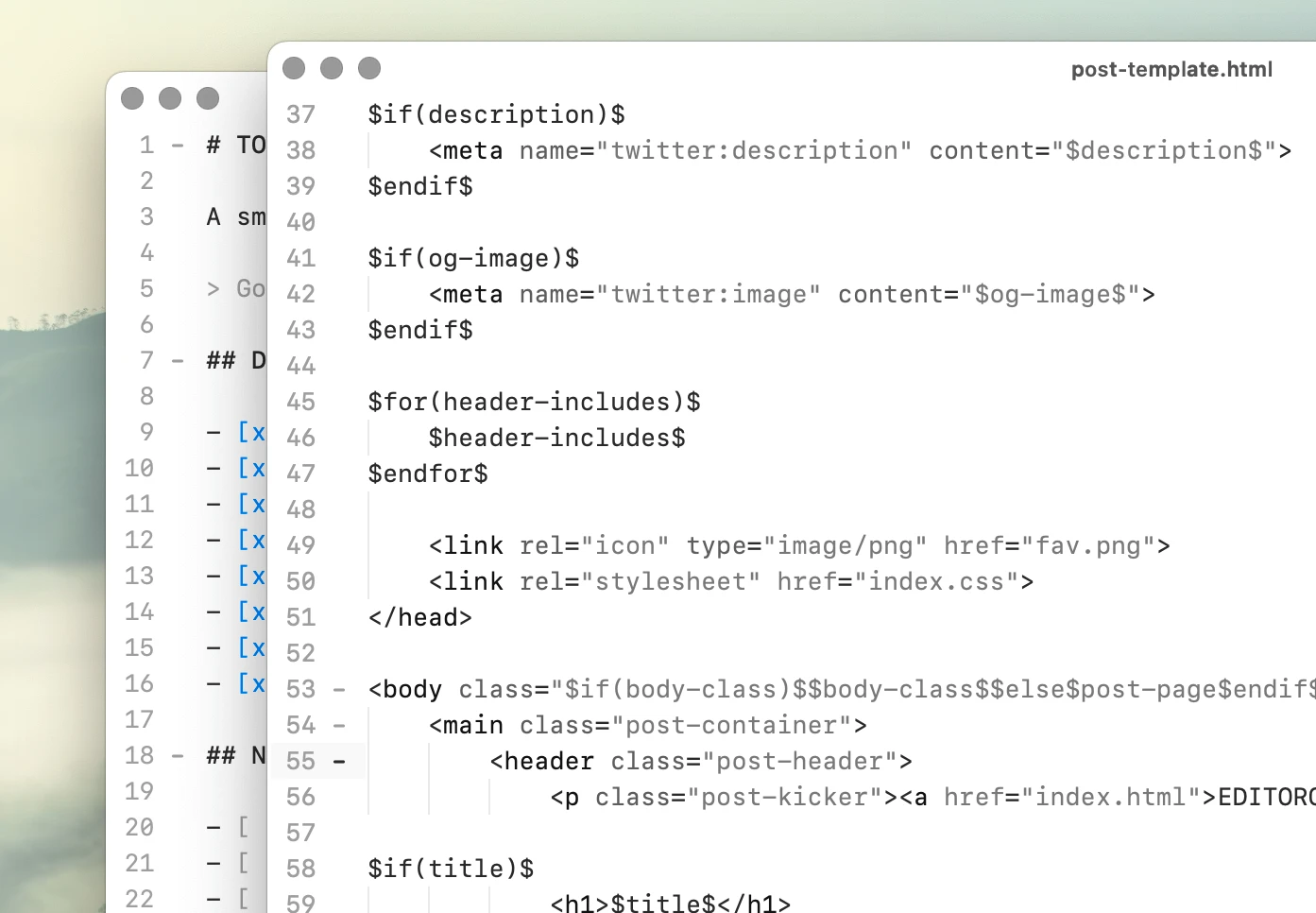
并排打开文件,将它们拆分为横向面板,或将标签页拖出到独立窗口。

即使同一个文件同时在多个窗口中打开,所有视图也会自动保持同步。
私有 AI 补全

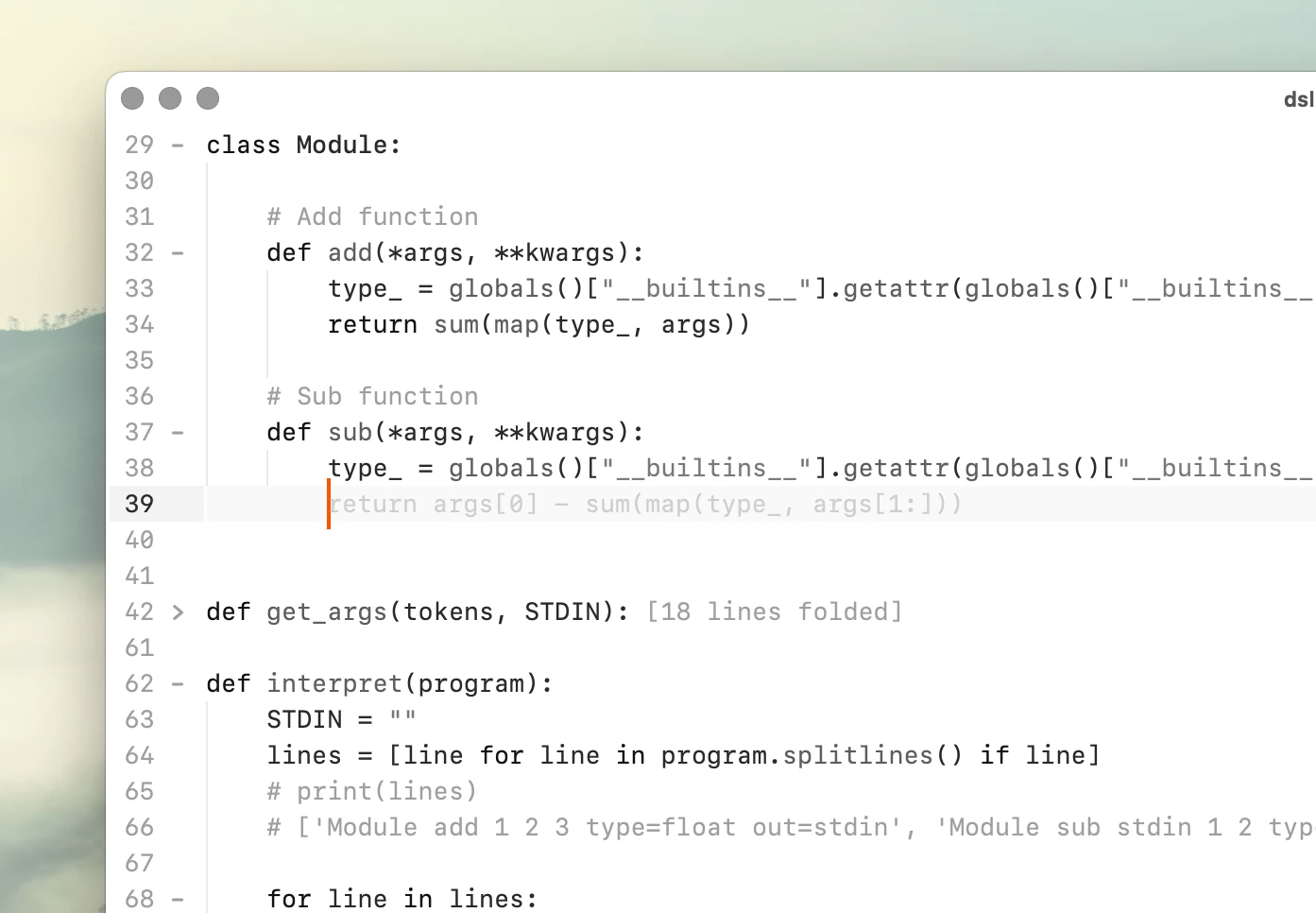
通过 Ollama 在本地运行模型,让代码留在你的机器上,并选择最适合你的设备和工作流的模型。

AI 代码建议经过设计,力求快速、不打扰,并自然融入日常编辑工作流。
内联 Shell 与聊天

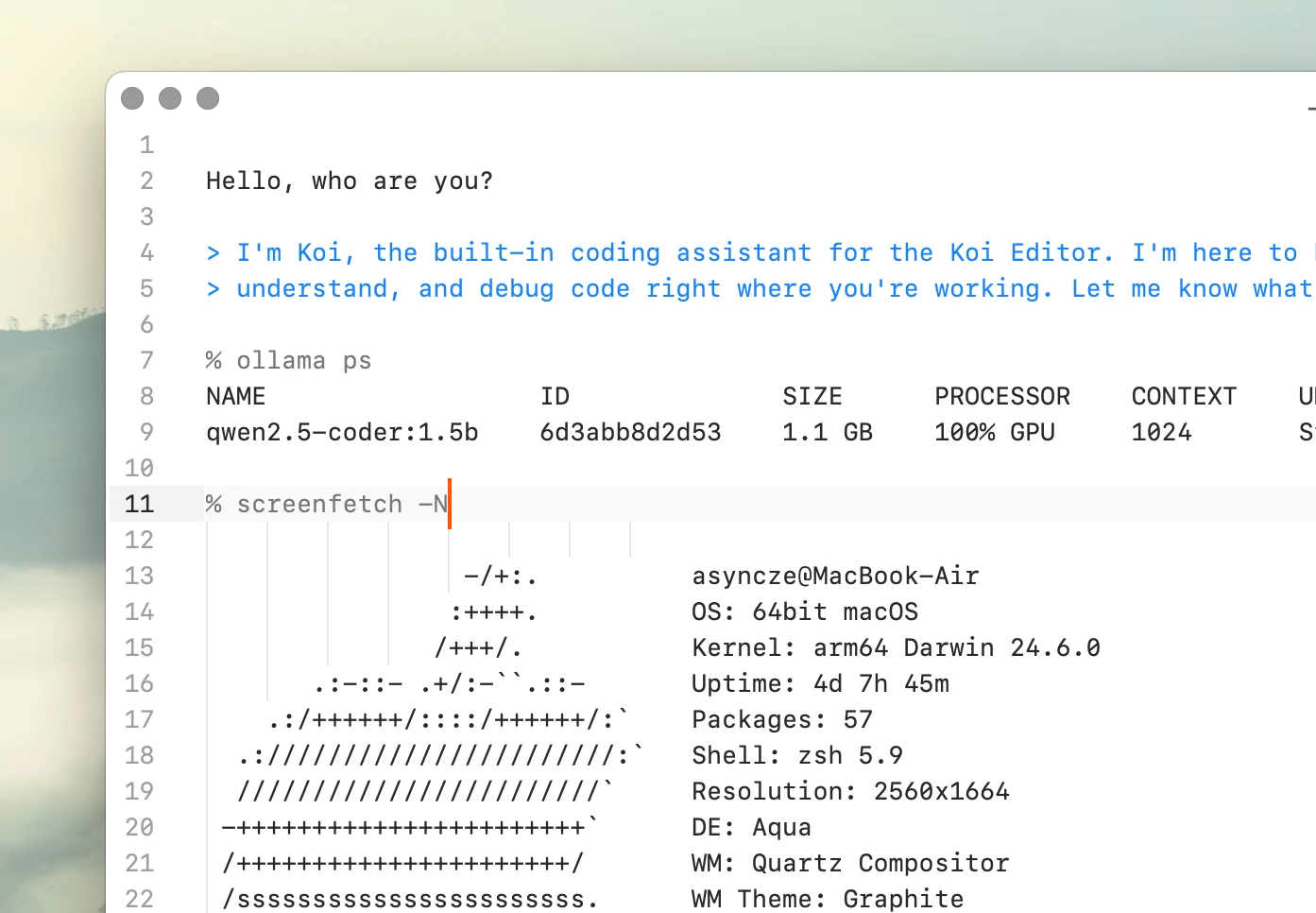
无需离开编辑器即可运行 Shell 命令或与本地 AI 对话。将当前选中内容作为提示发送,并把响应直接流式写回文档。
自定义编辑器命令

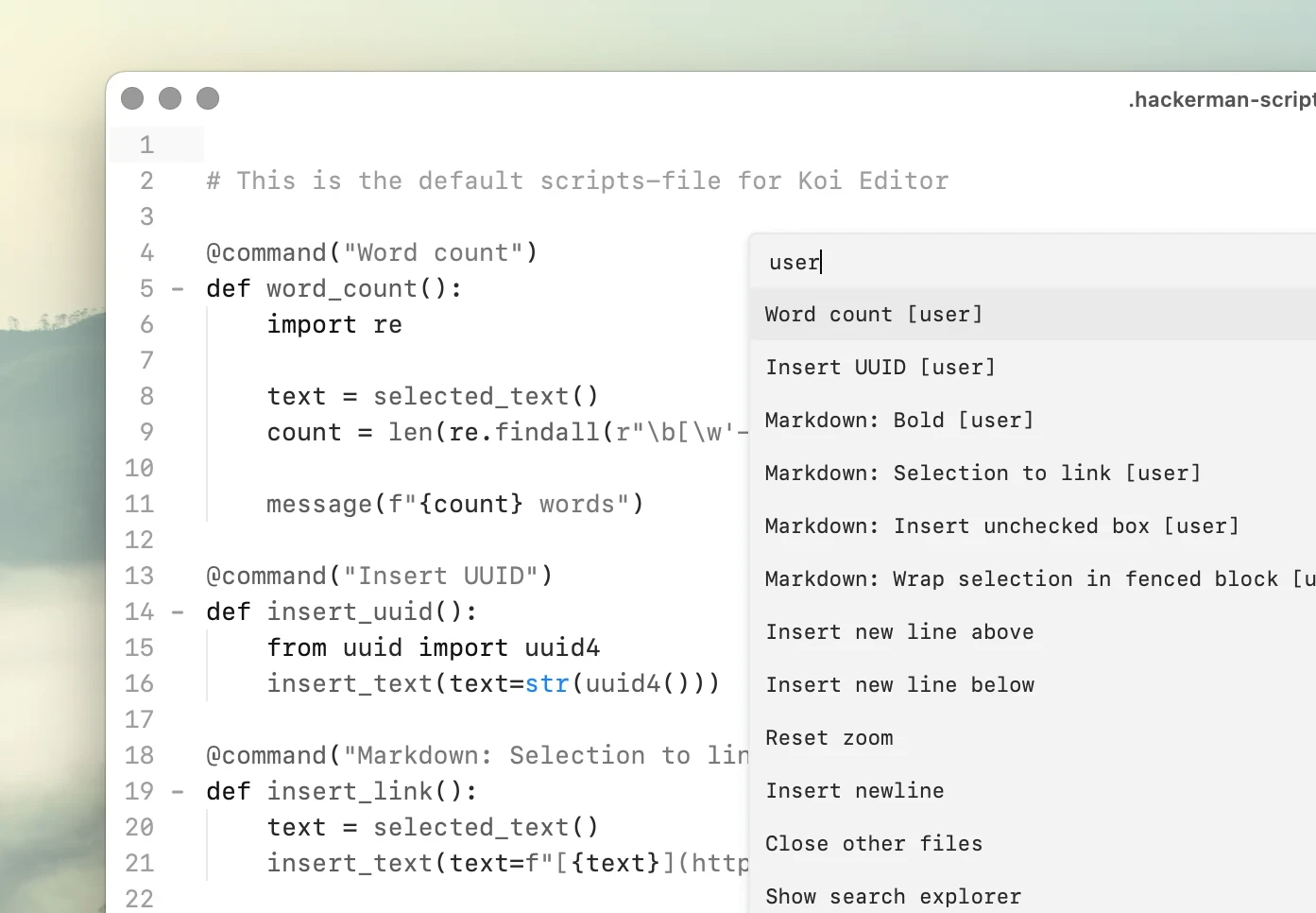
无需学习插件框架,直接使用普通 Python 扩展 Koi。

编写编辑器命令,将其绑定到快捷键,并像内置功能一样使用。
Use cases

Zero-latency typing

Koi maintains a measured P95 typing latency of 17.86 ms while editing a 1 million-line Odin source file with syntax highlighting enabled.

Local AI, on your Mac

Koi works directly with local Ollama models, with no account, telemetry, or cloud intermediary. Use local code completion and inline AI while keeping your code and inference on your Mac.

Native macOS code editors

A look at code editors built specifically for macOS, from long-running editors like BBEdit and TextMate to newer alternatives like Nova, CodeEdit, and Koi.

Koi for note taking

Keep notes as ordinary Markdown, plain text, Org Mode, or other files. Open directly into your notes folder, search with ripgrep, and organize everything without a proprietary database.

路线图

我们目前正在开发以及最近发布的内容。

Submit feature request →

Find in file optimizations

Tab multi-select

Multi-cursor editing

Multiple views, single document

Inline AI chat

Local code completion

Project-wide search

Context-aware auto-complete

Custom editor commands

Code scroller (minimap)

Emacs-like org mode for notes

In-code shell and Python eval

手工调校的原生词法分析器,带来快速、精确的语法高亮。

Asm

Bash

C

CSS

Clojure

C++

D

Diff

Elixir

Fortran

Gleam

Go

Haskell

HTML

Jai

Java

JavaScript

Julia

JSON

LaTeX

Lua

Makefile

Markdown

MATLAB

Mojo

Nim

OCaml

Odin

Org

Pascal

Perl

PHP

Python

R

Ruby

Rust

SQL

Swift

TOML

TypeScript

WAT

YAML

Zig

价格

Personal Pre-release

$195 $325

一次性付款

单用户

不限设备数量

可用于商业用途

一次购买,永久拥有

购买 Personal

Teams

$795 /year

最多 10 名用户

每个许可证最多 10 名用户

每位用户不限设备数量

可用于商业用途

一年有效期

购买 Teams

Business

$19,995 /year

面向较大的组织

不限用户数量

每位用户不限设备数量

可用于商业用途

一年有效期

购买 Business

为什么需要购买许可证?

Koi Editor 可免费用于非商业用途。如果用于工作,则需要商业许可证。这也是产品持续开发的资金来源。

什么算非商业用途?

非商业用途包括学习、个人项目、兴趣项目和试用评估。如果你将 Koi Editor 用于有偿工作、公司工作、客户项目或任何其他商业活动,则需要商业许可证。

我应该选择哪种许可证?

Personal 许可证适合单个个人用户。Teams 和 Business 许可证适合组织和多用户使用。

独自用于专业工作:Personal

为小团队购买:Teams

用一个许可证覆盖较大的组织:Business

Personal 许可证可以用于工作吗?

可以。只要使用该软件的只有你一个人,Personal 许可证就可以用于商业工作。多人使用请选择 Teams 或 Business。

什么时候应该选择 Business,而不是 Teams?

Teams 面向较小团队,每个许可证最多覆盖 10 名用户。如果需要覆盖更多用户,可以在结账时增加 Teams 许可证数量,或在续订时升级到 Business。

许可证文件丢失了,如何重新获取?

你可以使用购买后显示的 Session ID 恢复许可证文件。

我们也可以帮你恢复许可证。请发送邮件到 koi@hackerman.ai,并附上与购买相关的信息,例如邮箱、姓名、公司名称以及大致购买日期和时间。